Setup guide
Send DayFlo one real family update
DayFlo starts working after a school, team, camp, or activity message reaches your private forwarding address.
1
Copy your address
Copy the DayFlo forwarding address from Quick Setup or Settings.
2
Open the source
Use your inbox, school portal, team app, or notification settings.
3
Send one update
Forward an existing message or route future email notifications to DayFlo.
Tip: ParentSquare is one example. Most school, team, camp, and activity apps follow the same pattern: open notification settings, choose email notifications, and use your DayFlo address.
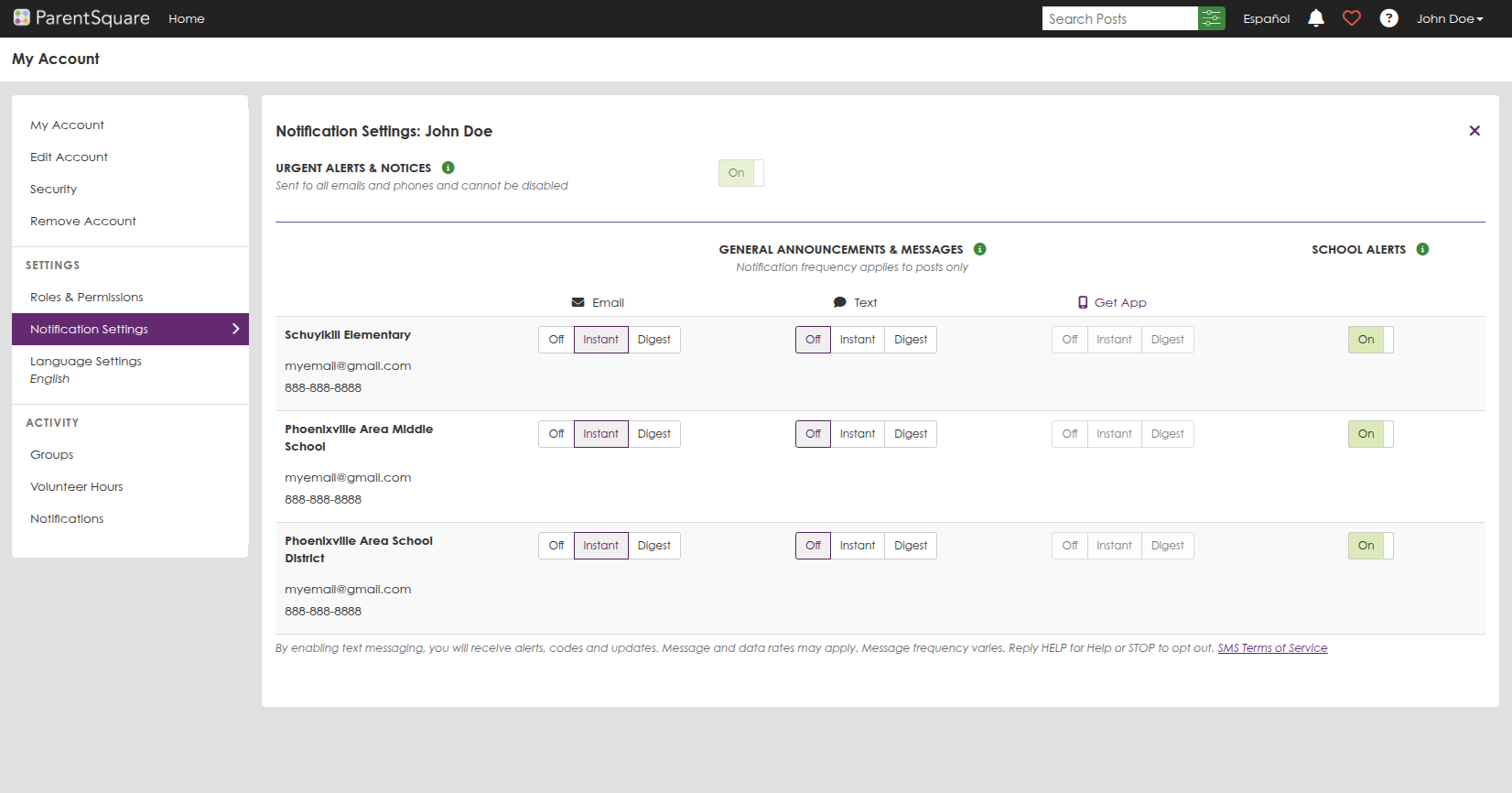
ParentSquare example
- Log in to ParentSquare. Use a desktop or mobile browser to access your account at parentsquare.com.
- Click your name in the top right corner and select “My Account” from the dropdown menu.
- From the left-hand sidebar, click “Notification Settings”.
-
Under each school listed, find the Email column. For each row:
- Click Instant under Email.
- This will enable immediate email notifications for announcements and messages.
- Use your DayFlo forwarding address. Ensure that the email listed for notifications matches the forwarding address shown in DayFlo settings.
- Last step. Wait for the next ParentSquare email or forward an existing relevant update to your DayFlo address. DayFlo will show receipt and processing status in the app after a message arrives.